Tutorial:
Convert HTML File to PDF
Step-by-step guide to converting HTML files from your computer
Open the Extension
Click the HTML to PDF extension icon in your Chrome toolbar to open the extension popup.
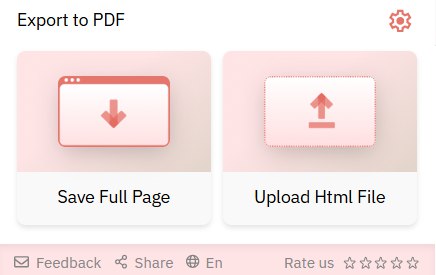
You’ll see the main interface with two options: “Save Full Page” and “Upload Html File”. Click on “Upload Html File” to convert local HTML files.
Select Your HTML File
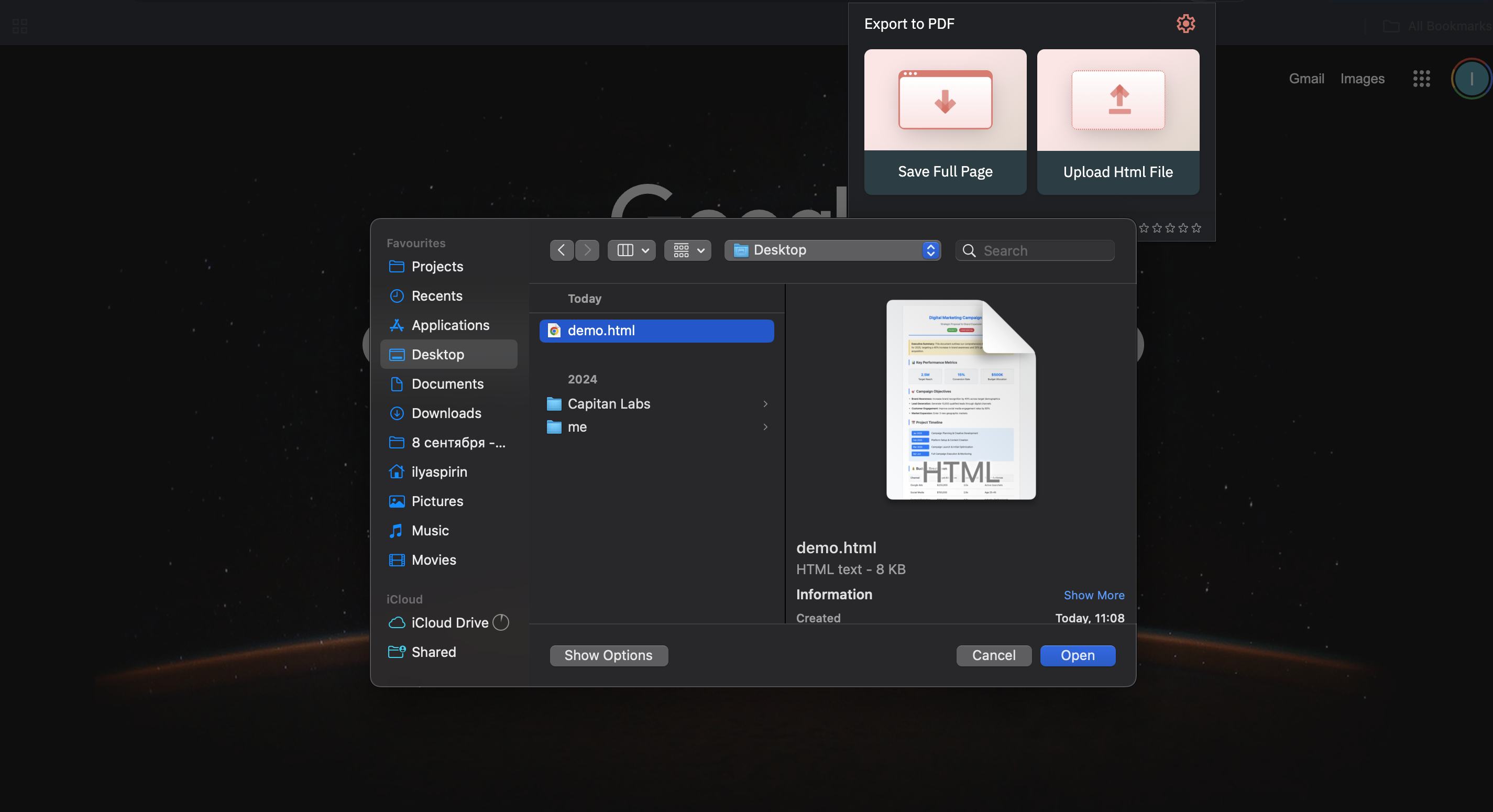
Click the “Upload Html File” button to open the file browser. Navigate to the location where your HTML file is stored on your computer.
Preview and Process
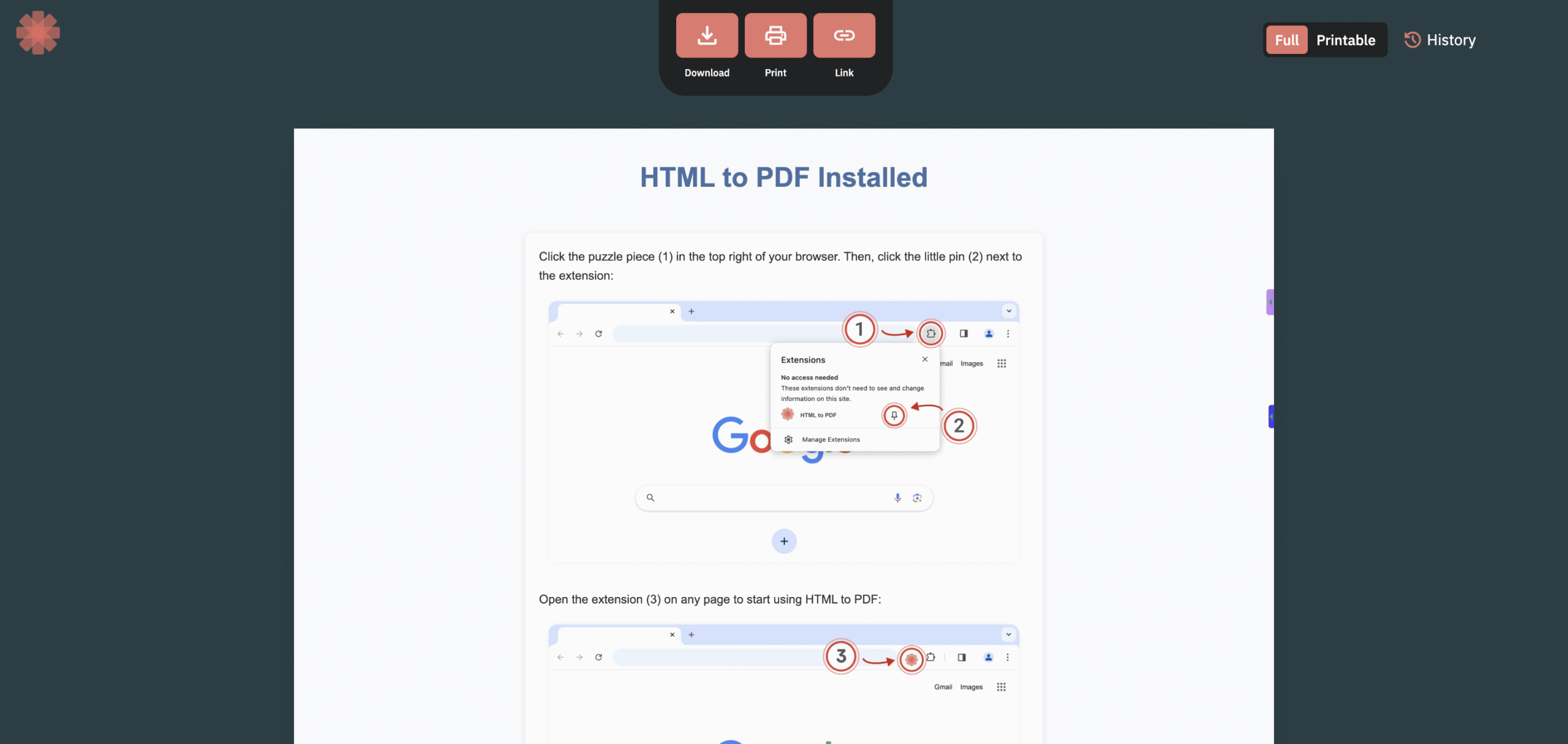
Once you’ve selected your HTML file, the extension will load and preview the content to ensure it displays correctly.
Download Your PDF
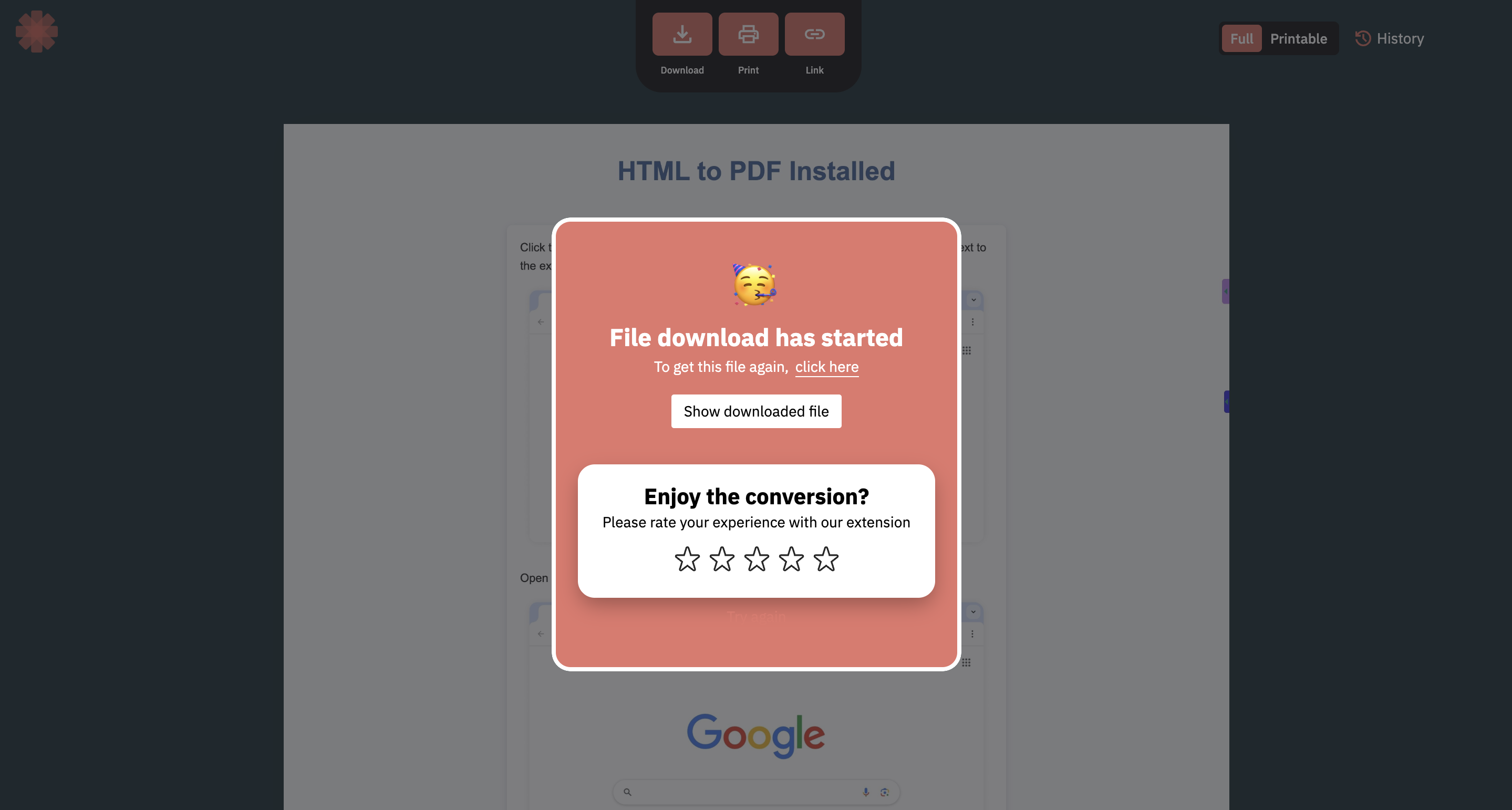
After processing is complete, the PDF will automatically download to your default Downloads folder. The filename will be based on your original HTML file name.
✅ Done! You’ve successfully converted your HTML file to PDF format. Perfect for sharing web designs, documentation, or archived web content as professional PDF documents.