Tutorial
Tutorial: Save Full Page
Step-by-step guide to converting any web page to PDF
bookStep 1
Install the Extension
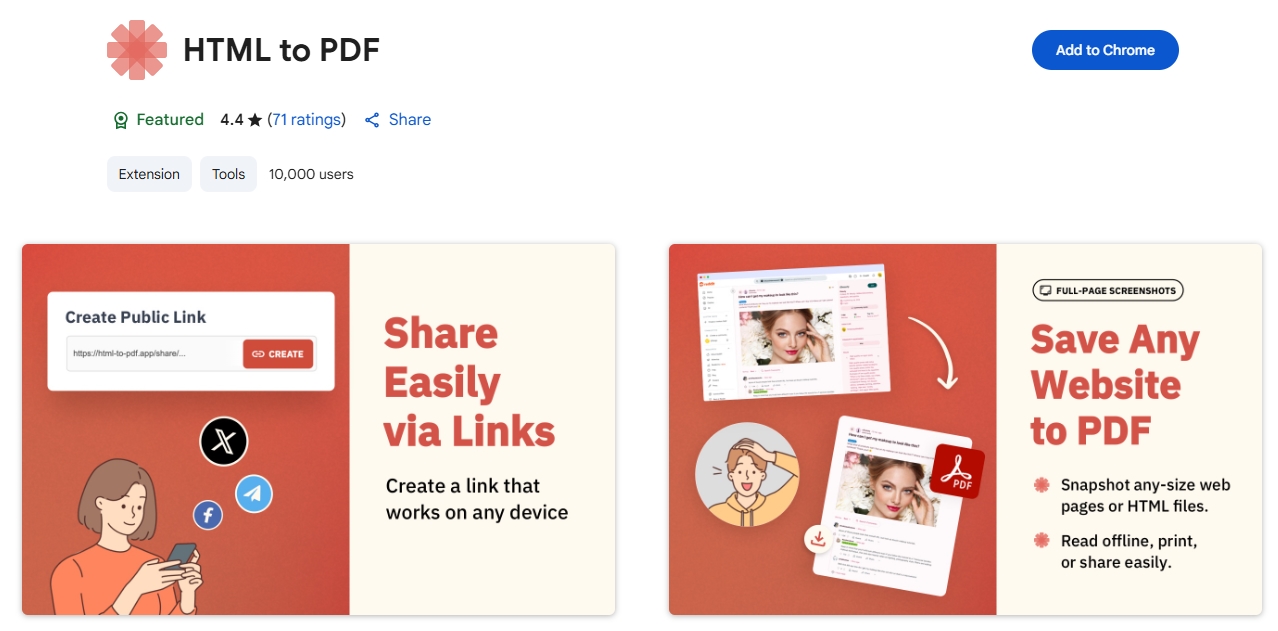
- Open Google Chrome and navigate to the Chrome Web Store. Search for “HTML to PDF” to find our extension
- Click on our extension with the official icon, then hit the “Add to Chrome” button to begin installation
bookStep 2
Navigate to Your Target Page
Open any web page that you want to convert to PDF. This could be an article, blog post, documentation, or any other web content. Make sure the page has fully loaded, including all images and content, for the best PDF conversion quality
bookStep 3
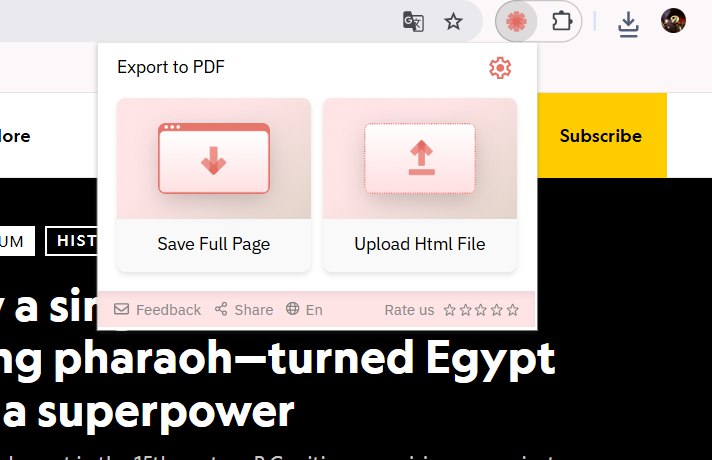
Convert Page to PDF
The extension will instantly begin processing the full page. You’ll see a brief processing indicator while the PDF is being generated
bookStep 4
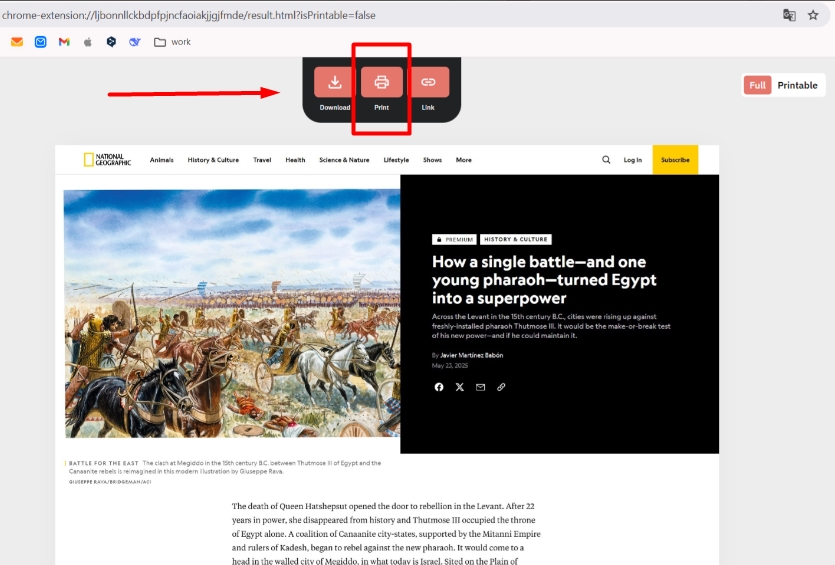
Download Your PDF
Your PDF preserves the original page layout, formatting, images, and clickable links – perfect for offline reading or sharing
✅ Done! You now have a high-quality PDF copy of any web page with just one click. Perfect for research, archiving, or offline reading.